App User Guide (på svenska)
Download the App
In order to participate in a study, you must download the ReGo App from either Google Play (for Android users) or the App Store (for iOS users).

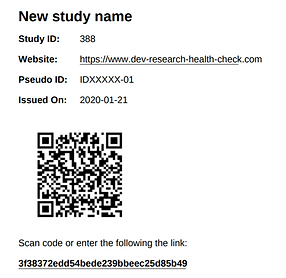
Log in
Logging into the app automatically enrolls you in the research study. In order to log in, you must receive a QR code or a study link from the person responsible for the study.
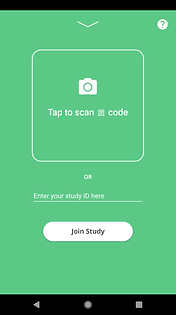
Open the App and swipe up to open the login page. You may log in by scanning your QR code or by manually entering the study link. In order to scan the QR code, the App must have permission to use your camera. You will be asked to provide access to the camera the first time you try to log in. At any time you may grant or deny access to the camera on your phone's settings.
When logging in, you will be asked to agree to the relevant terms and conditions. It is important you understand the purpose of the study, and how your data will be used. The app does not have access to your personal information. The person group managing the study are responsible for your data and how it is used. Contact them if you have any questions.
Questionnaires, schedules, and questions
Once you are enrolled in the study, you will see all the questionnaires available in this study in your App's main page.
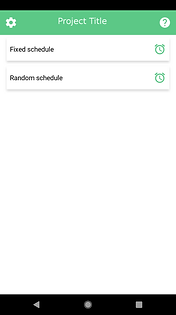
By clicking on one of the available questionnaires, you can access all questions included in that questionnaire. You can submit your answers at any time. However, notifications will be shown at specific times, to remind you to submit your answers. The notification schedule is set by the study manager. As soon as you receive these notifications, you should select them and fill in the corresponding questionnaire.
Settings and Help
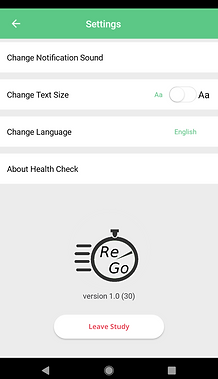
In the Setting menu of the App you can: change the notification sound, change the text size, change language (English or Swedish), read about our platform, and leave the study.
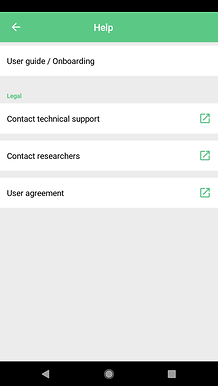
In the help menu of the App you will find: a link to this user guide, information to contact technical support, contact information to the PI or other designated contact person for your study, and a link to our user agreement.
Leaving the study
You may choose to leave the study at any time. Please contact the study administrator if you are considering leaving the study. If you leave the study by accident, or if you lose or change your phone, contact the the study administrator so that they can help you re-enroll in the study.
When you leave the study, you can no longer access the study questionnaires nor provide answers to questionnaires. All the data you have already submitted will remain accessible to the study administrator. If you wish to delete your data from the study, please contact them.
Why am I not getting notifications?
In order for the App to create notification, please ensure that the App has the required permissions, that your phone is not in "Do Not Disturb" mode, and that the App is allowed to run in the background.
Android
- Go to Settings -> Sound -> Do Not Disturb -> make sure it is off.
- Go to Settings -> Apps & notifications -> SEE ALL APPS -> ReGo App -> Notifications -> make sure show notifications is on.
- Go to Settings -> Apps & notifications -> SEE ALL APPS -> ReGo App -> expand Advanced -> Battery -> make sure App can use battery in background (no restriction)
iPhone
- Go to Settings -> Do Not Disturb -> make sure it is off.
- Go to Settings -> scroll down to the ReGo App-> make sure Background App refresh is on
- Go to Settings -> scroll down to the ReGo App-> Notifications -> make sure Allow Notifications is on, and that lock screen, notification center and banners are all enabled.